VLC Media Player Overview
VLC Media Player for Mac is a free, open-source multimedia player that plays nearly any video or audio file without needing extra codecs or paid extensions. It handles everything from MP4 and MKV to DVDs, streaming protocols, and network broadcasts, all through one clean interface. Developed by the non-profit VideoLAN project, it's been a go-to alternative to QuickTime for over two decades because it simply plays formats QuickTime can't. The current release, version 3.0.23, runs natively on both Apple Silicon and Intel Macs without any Rosetta translation needed.
Why Choose VLC Media Player
QuickTime, the Mac's built-in player, chokes on common formats like MKV and requires paid extensions just to handle HEVC video. VLC skips all of that friction by playing over 200 formats the moment you install it, with no codec packs, no App Store purchases, and no hidden paywalls. For anyone who downloads media from mixed sources, that alone eliminates the most common Mac playback headache.
What makes VLC worth choosing on Mac specifically is how well it's kept pace with Apple's own hardware transition. It runs as a genuine universal build across M1 through M4 chips with full native performance, not a translated Intel binary limping along under Rosetta. Recent updates also extended compatibility further back, keeping older Intel Macs on macOS Mojave and even earlier fully supported, which is rare among modern media apps that quietly drop legacy macOS versions with every release.
Key Features
- Plays over 200 audio and video formats without additional codecs
- Native Apple Silicon and Intel support with no Rosetta overhead
- Hardware-accelerated decoding for smooth 4K and 8K playback
- Built-in media converter for changing file formats without extra software
- Streaming support for HTTP, RTSP, UDP, and other network protocols
- Subtitle support with automatic syncing and dozens of language options
- Customizable interface through skins and downloadable extensions
- Equalizer and audio effects for fine-tuning sound output
- DVD, VCD, and Audio CD playback built directly into the app
- No spyware, no ads, and no user tracking of any kind
What's New in 3.0.23 Version
Version 3.0.23 is a maintenance release focused on stability, security, and format compatibility rather than headline features.
- Additional security fixes addressing vulnerabilities discovered since the previous release
- Exposes more detailed audio codec information, especially useful for 24-bit FLAC files
- Fixed WebVTT subtitle line positioning so captions display correctly
- Fixed an issue where certain JPEG files with JFIF headers weren't detected properly
- Prepared compatibility with newer versions of TagLib, Qt6, and other underlying libraries
- General bug fixes across demuxers, audio handling, and platform-specific components
Supported macOS Versions
VLC requires macOS 10.7.5 or later and runs as a genuine universal binary, giving Apple Silicon Macs full native performance without any Rosetta translation layer slowing things down. Older Intel Macs remain well supported too, with the current 3.0.x branch keeping compatibility as far back as OS X Lion, something few actively maintained apps still bother to do. If you're running an even older Mac, VideoLAN maintains legacy builds going all the way back to Mac OS X 10.0, though those no longer receive updates. For smooth 4K or 8K playback, a Mac with hardware-accelerated video decoding gets the most benefit, though standard HD playback runs comfortably on nearly any Mac built in the last decade.
How to Install VLC Media Player on macOS?
Getting VLC running on your Mac takes just a couple of minutes.
- Click the download button on this page to get the latest Mac build.
- Open the downloaded .dmg file once it finishes downloading.
- Drag the VLC icon into your Applications folder as prompted.
- Open Applications and double-click VLC to launch it for the first time.
- Approve the macOS security prompt confirming it's safe to open.
- VLC is now ready to open and play any media file on your Mac.
- You're all set to start playing videos, DVDs, or streams right away.
How to Use VLC Media Player Mac?
- Once VLC is installed, playing your first file takes just a few clicks.
- Open VLC from your Applications folder or Dock.
- Choose File, then Open File, and select the video or audio you want to play.
- Alternatively, drag any media file directly onto the VLC window or Dock icon.
- Use the playback bar to pause, skip, or scrub through the file.
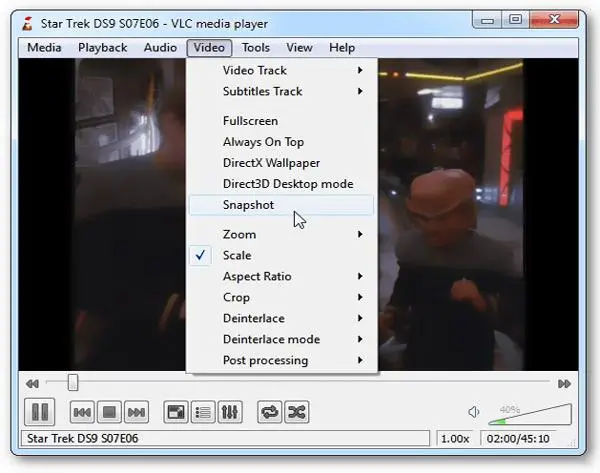
- Adjust subtitles, audio tracks, or playback speed from the toolbar menus.
- Access Preferences from the VLC menu to customize hotkeys, skins, and effects.
Final Verdict
VLC Media Player for Mac remains the most reliable free option for anyone tired of format compatibility issues, whether that's a stubborn MKV file or a DVD that QuickTime won't touch. Its native Apple Silicon support, long history of security updates, and complete lack of ads or paywalls make it an easy install for nearly any Mac user. The interface won't win design awards, but for pure playback reliability across almost any file type, VLC is still hard to beat.
Download VLC Media Player for Mac
Ready to play any video or audio file without the compatibility headaches? Grab the latest Mac build right here, completely free.